Connect Claude to OnlineFitness.app
Your coaching account is also an MCP server. Connect it to Claude once — about two minutes — and Claude gets 131 tools to do real work in your account: build programs, read check-ins, manage leads, send messages you approve.
Updated · Verified against the current Claude and OnlineFitness.app interfaces
What you'll need
- An OnlineFitness.app coach account — free for life for our first 100 coaches.
- Claude with custom connectors — the Connectors section in Claude's settings, on the web or in the desktop app.
- No API keys, no developer tools, no command line.
Copy your connector URL
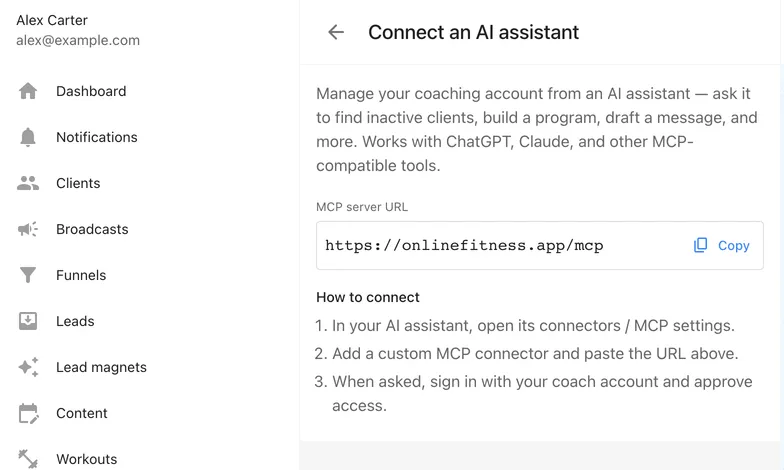
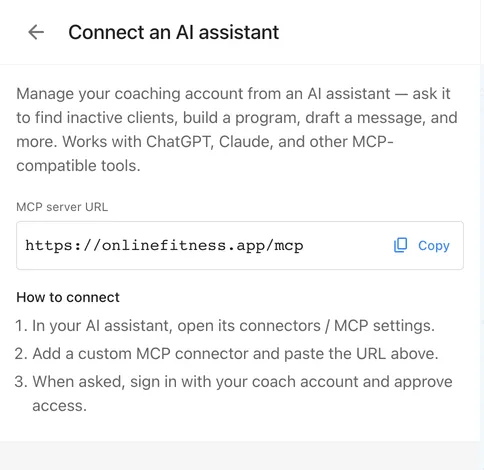
In your cabinet, open Settings → Connect an AI assistant. The page shows your MCP server URL with a copy button. The URL is the same for every coach:
https://onlinefitness.app/mcp
Add a custom connector in Claude
- In Claude — claude.ai or the desktop app — open Settings → Connectors.
- Press Add and choose Add custom connector.
- Name it — “OnlineFitness.app” works — and paste the URL into Remote MCP server URL.
- Press Continue.
Add custom connector
Sign in and approve access
Claude opens a sign-in page on onlinefitness.app in your browser. Sign in with your coach account — the same email code you use for the cabinet. Then a consent screen asks to authorize access and names where the authorization code goes: claude.ai. Press Allow, and the browser returns you to Claude.
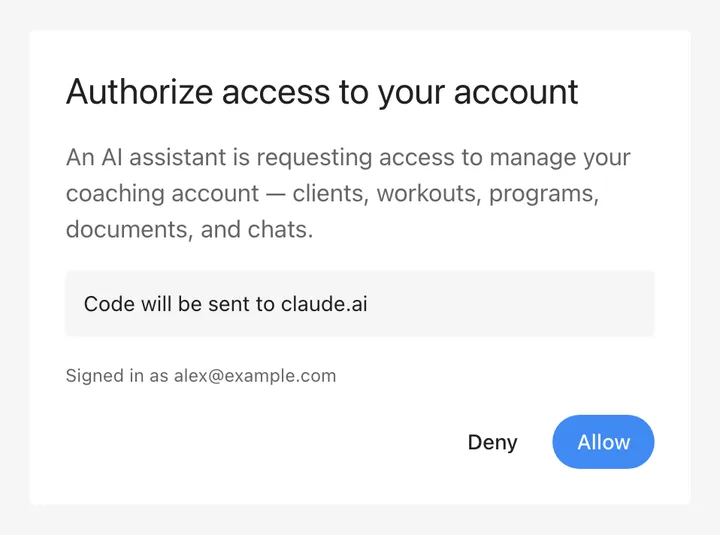
That's the whole handshake. Claude never sees your password, and there's no API key to store or rotate. Removing the connector in Claude ends access — nothing to clean up on the platform side.
Ask for real work
Open any Claude chat and ask in plain language. Claude picks the tools itself and shows each call in the chat — you see exactly what it read and what it changed. The results are regular items in your cabinet: workouts on the calendar, drafts in the planner, messages in the chat history.
“List my clients and flag anyone with no workout scheduled this week.”
A read-only start — Claude calls list_clients and list_client_workouts and reports back.
“Build Anna a 4-week program from my exercise library, three sessions a week, and assign it starting Monday.”
Claude creates the program day by day from your own exercises and puts it on Anna's calendar.
“Read Mike's check-in answers and measurements for the last month and suggest what to change in his next block.”
Client-recorded data is read-only over MCP — Claude can analyze it, never edit it.
“Draft a Monday check-in broadcast for everyone tagged ‘summer intake’ — show me the text before anything goes out.”
Messages send only when you tell Claude to send them.
What Claude can and cannot touch
The connector exposes 131 tools across clients, workouts, programs, the exercise library, funnels and leads, forms, chat and broadcasts, content and documents — the full list is in the tool reference. The boundaries are deliberate:
- Client-recorded data — workout results, measurements, form answers — is read-only. Claude can analyze it, never edit it.
- Deleting clients, uploading files, and changing your email or password are not exposed over MCP at all.
- Chat messages and broadcasts go out from your account, as you — so Claude drafts, and you decide what gets sent.
If something doesn't work
The sign-in page says your account cannot authorize access
You're signed in with a client account. The connector works with coach accounts — sign out on the consent page and sign back in with your coach email.
Claude added the connector but does not use the tools
Check the connector is enabled for the chat: in the chat's tools menu, the OnlineFitness.app connector has its own toggle. Asking for something concrete — “list my clients” — also helps Claude reach for the tools.
The connector fails to add
Check the URL is exactly https://onlinefitness.app/mcp — https, no trailing slash, nothing appended.
Questions, answered
Do I need an API key?
No. The connector uses OAuth: Claude opens a sign-in page on onlinefitness.app, you approve access once, and no password or key is ever pasted anywhere.
Is the connector URL secret?
No — it's the same public URL for every coach: https://onlinefitness.app/mcp. Your data is protected by the OAuth sign-in, not by the URL.
Which Claude apps does this work in?
Claude on the web (claude.ai) and the Claude desktop app share the same Connectors settings — connect once and it works in both.
Does the same connector work in ChatGPT?
Yes, with plan caveats on the ChatGPT side — full access is currently limited to Business, Enterprise and Edu plans, and Pro is read-only. The ChatGPT guide has the details and the setup steps.
What can Claude actually do once connected?
It gets 131 tools that cover the coaching surface: clients, scheduled workouts, program templates, your exercise library, funnels and leads, check-in forms, chat and broadcasts, content planning, and documents. Client-recorded data — results, measurements, form answers — is read-only.
How do I disconnect?
Remove the connector in Claude's Settings → Connectors. Access ends immediately — nothing to clean up on the OnlineFitness.app side.
Does this cost extra?
No. The MCP connector is included on every plan. Our first 100 coaches get the whole platform free for life; after that it’s free for 3 clients, then a flat $49/month.
Go further
The full tool reference
Every one of the 131 MCP tools — grouped by area, with what each one reads and writes.
Why connect an AI at all
What delegation looks like with real tools, what stays off-limits, and what it costs — on the MCP connector page.
Living in ChatGPT instead? The connector works there too, with its own flow — see Connect ChatGPT.
No account yet?
Create one, add a few exercises, and connect Claude — the whole setup fits in a coffee break.
Start free